How to Create Additional Questions in Bookteq
What are Additional Questions?
Additional Questions allow you to collect important information from your hirers during the booking process. This helps ensure you have everything you need ahead of time, reducing the need for follow-ups later.
You can use them to gather details such as attendee numbers, booking requirements, or any other information relevant to your facilities.
How to set up an Additional Question
To create a new Additional Question:
- Go to Venue Settings in Bookteq.
- Select Additional Questions from the menu.
- Click Create an additional question to begin.
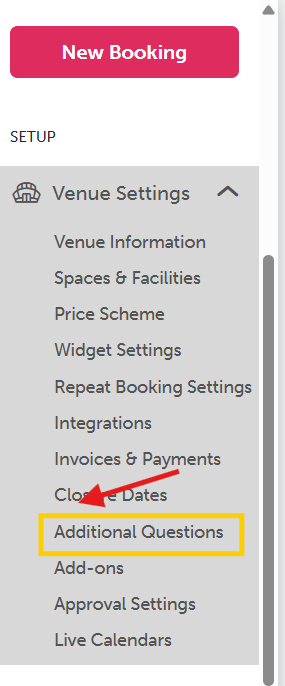

You will then be taken through a simple setup process.
Adding your question
First, you’ll need to define your question:
- Internal name – This is for your reference only and won’t be visible to hirers.
- Full question – This is what your hirers will see, so make sure it is clear and easy to understand.
Next, choose the type of response you want to collect, such as:
- Text answer
- Number input
- Yes / No response
You can also decide whether the question is mandatory or optional.
Assigning the question to facilities
Once your question is created, you’ll need to assign it to the relevant facilities.
You can:
- Apply it to all facilities, or
- Select specific spaces where it should appear
For example, a question about coaching may only be relevant for sports bookings and not general space hire.
Make sure you include all applicable facilities so the question appears where needed.
Saving your question
Once everything is set up, click Save Changes. Your new Additional Question will now be live immediately on your booking calendar widget (if enabled for those facilities).
How hirers answer Additional Questions
There are two ways hirers can respond:
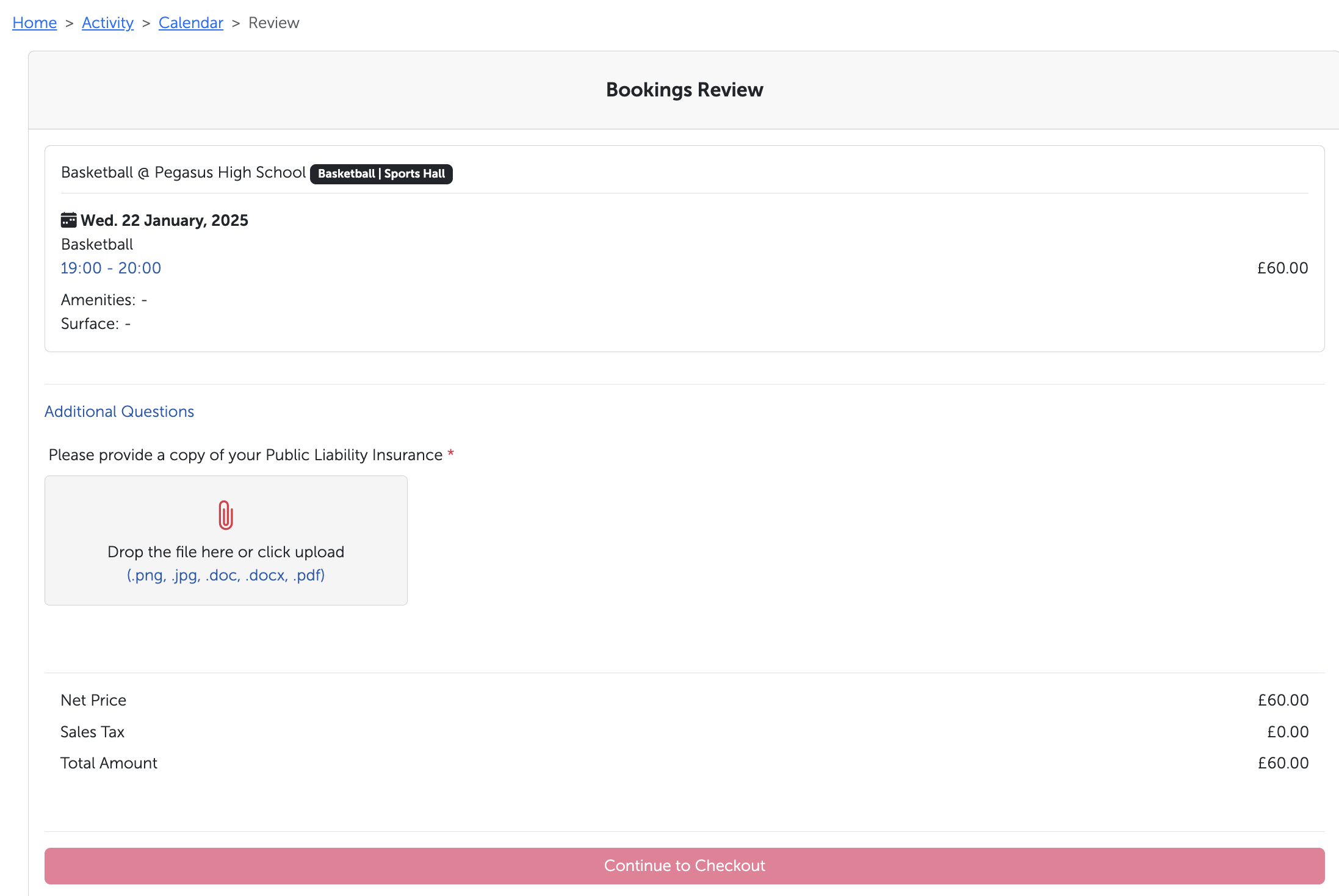
1. Through your booking calendar widget
When a hirer selects a facility, date, and time on your website, they will be shown any relevant Additional Questions before reaching checkout. After answering them, they continue with their booking as normal.
2. Through Bookteq (manual bookings)
If a booking is created directly in Bookteq, staff will be prompted to complete any Additional Questions on behalf of the hirer during the booking process.
Identifying bookings with Additional Questions
You can easily see which bookings include Additional Questions within both the Calendar and Bookings sections.
These bookings are marked with a question mark icon, indicating that additional information has been provided.
How to Add a Hyperlink to an Additional Question
To add a hyperlink to an additional question, follow the steps shown in the screenshot below:
- Place the word or phrase you want to act as the hyperlink inside square brackets
[ ]. - Immediately follow it with the link you want to use inside parentheses
( ).
Example:[Click here](https://example.com)
Please ensure you save the file as a Google Document and that the link is unrestricted. This ensures the file is accessible to everyone.
-png.png)
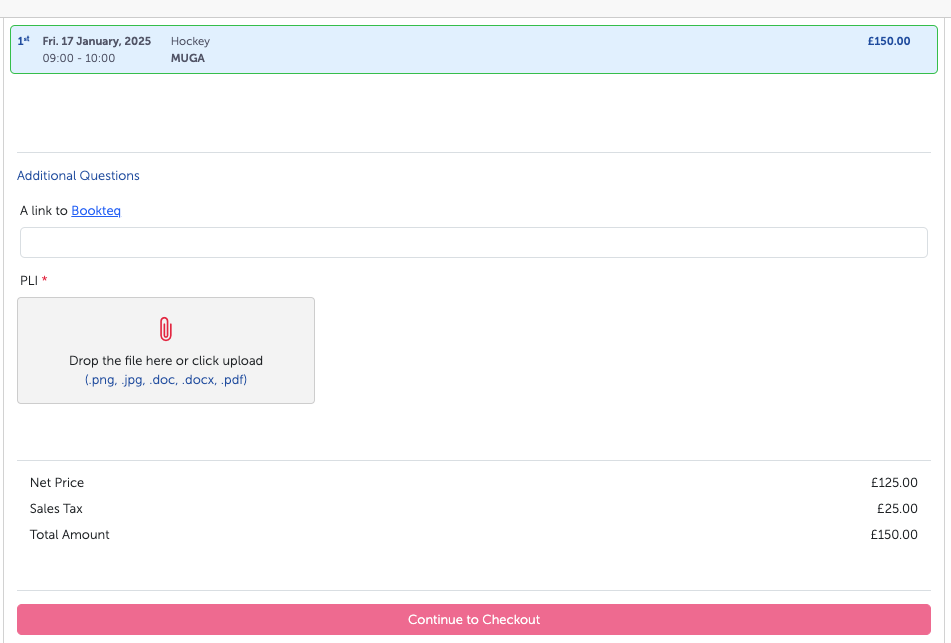
Below is an example of how this will appear on your widget calendar, allowing your hirers to click on the relevant link.
Still have a question? For more information on using Additional Questions, please use our contact form to speak to a member of our team.