How do I pull an unpaid bookings report for customers?
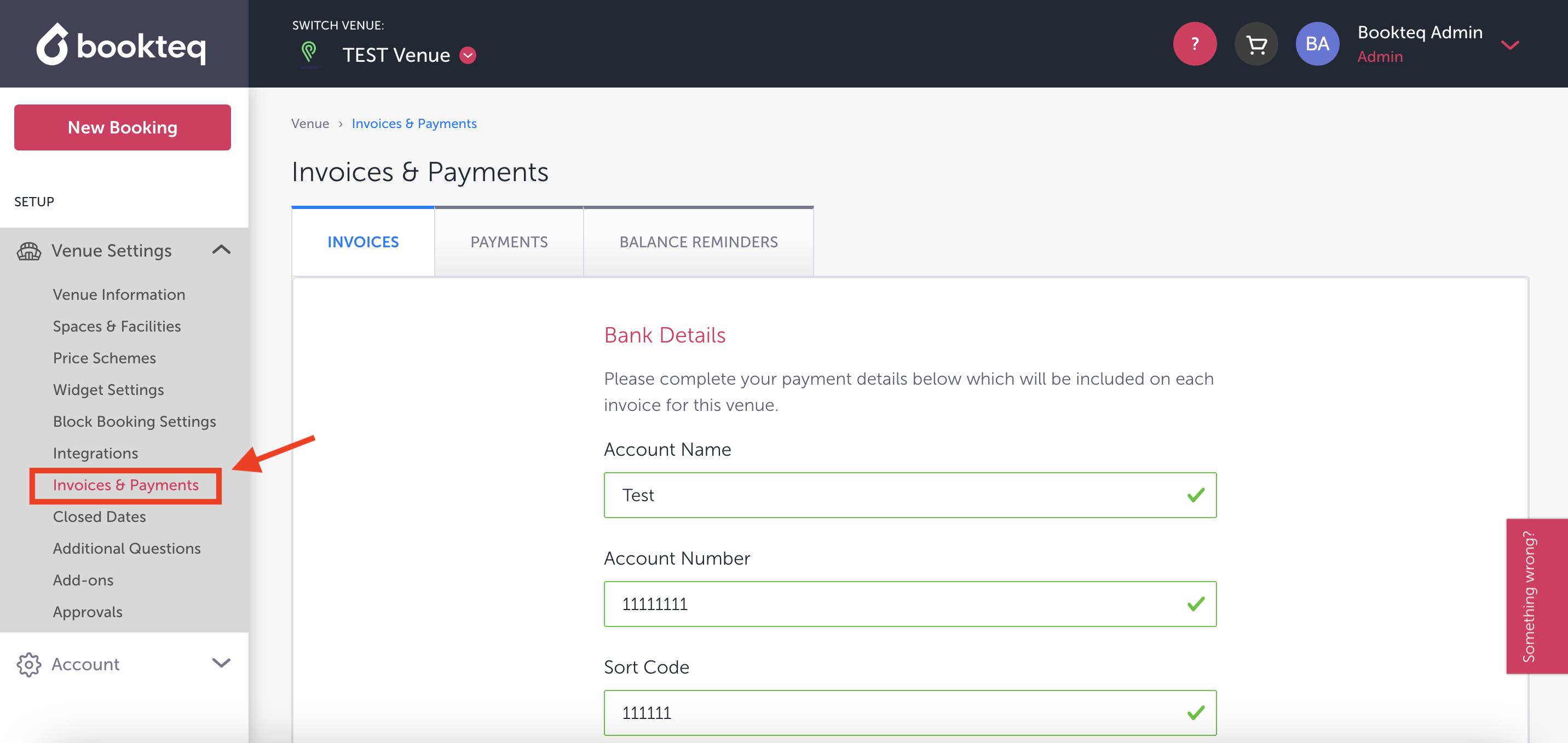
Step 1: Navigate to Venue Settings
- In your Bookteq Workspace, locate the menu on the left-hand side.
- Scroll down and select Invoices & Payments
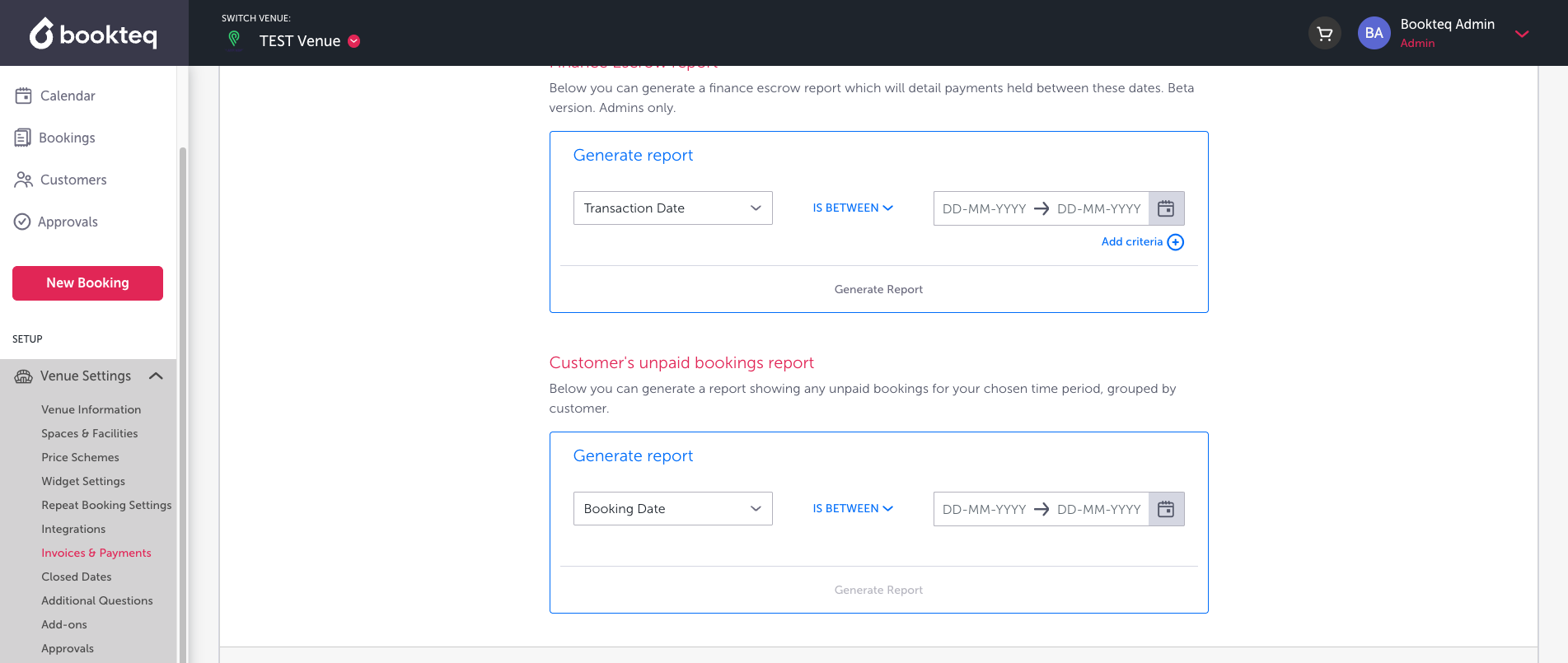
Step 2: Access Customer's unpaid bookings report
- On the right-hand side of the screen, scroll down to the Customer's unpaid bookings report section.
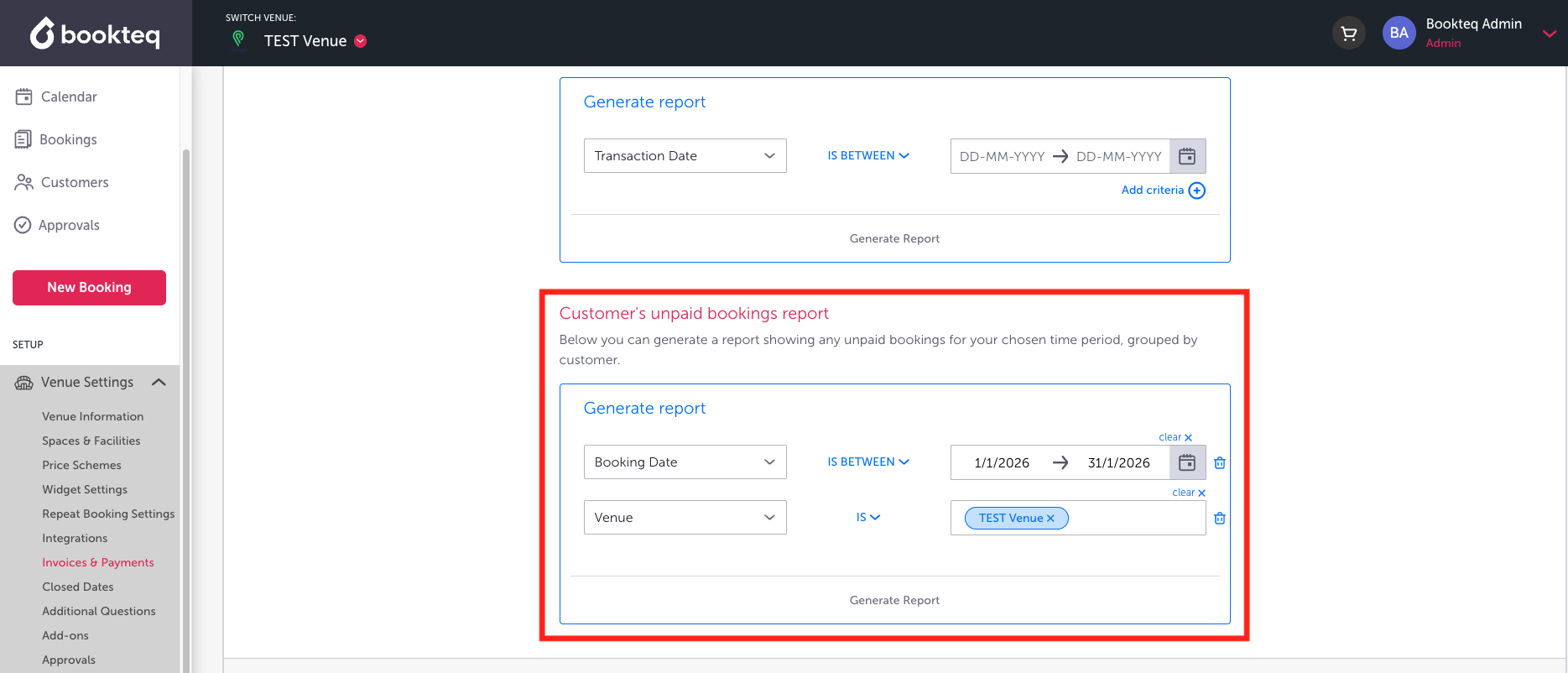
Step 3: Set Report Criteria
- Select the Booking Date range for the report.
- Optionally, add additional criteria for Venue if you have multiple on your workspace
- Click Generate Report.
Step 4: Download the Report
- Check your email inbox for the CSV report.
- Download the CSV file from the email.
Report Contents
The downloaded Customer’s Unpaid Bookings report includes the following details: customer name, customer email, customer phone number, organisation name, venue name, venue currency, debt per month (which may span multiple months depending on the selected date range), and the total outstanding debt value.