Booking Renewals: Everything You Need to Update Your Venue
In line with the academic year or football season, you may be looking to review and refresh your venue’s bookings, pricing and policies for the year ahead from September. From updating price schemes and managing closed dates to simplifying repeat bookings and payment plans, staying on top of these renewals ensures a smoother experience for both your team and your hirers.
In this blog, we’ll guide you through all the essential steps for booking renewals: how to adjust prices for specific periods, manage temporary closures, set up online repeat bookings, consolidate payment plans, and handle cancellations efficiently.
Applying and Updating Price Changes
To adjust prices for a specific period, you can either create a new price scheme or use future pricing.
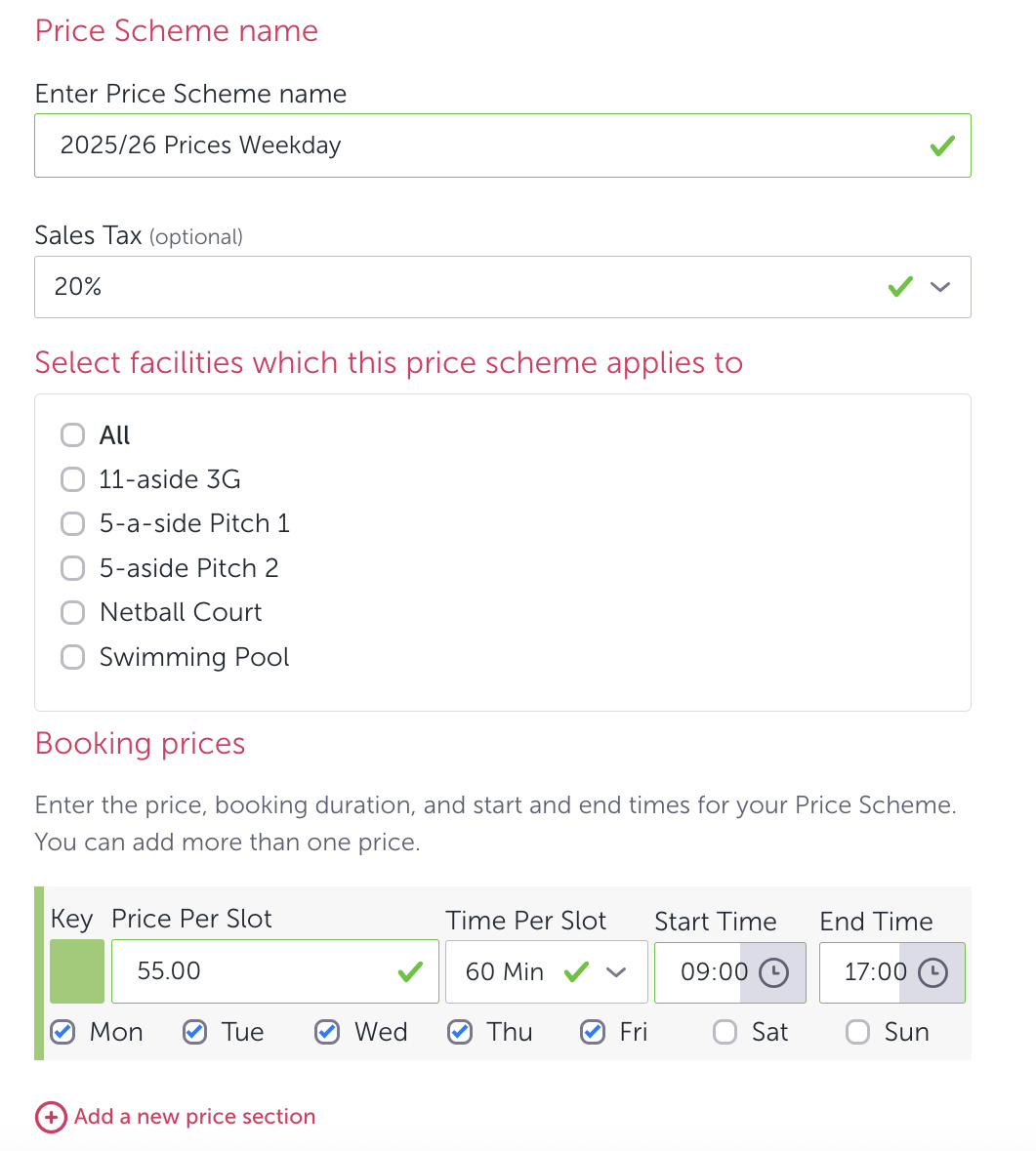
Create a New Price Scheme: Go to Venue Settings > Price Schemes and select Create New Price
Scheme. Name it (e.g., “26/27 Prices”) and set whether sales tax applies. Don’t select the facility yet—this avoids making it the default. Enter the new slot prices and define the opening hours for each day.
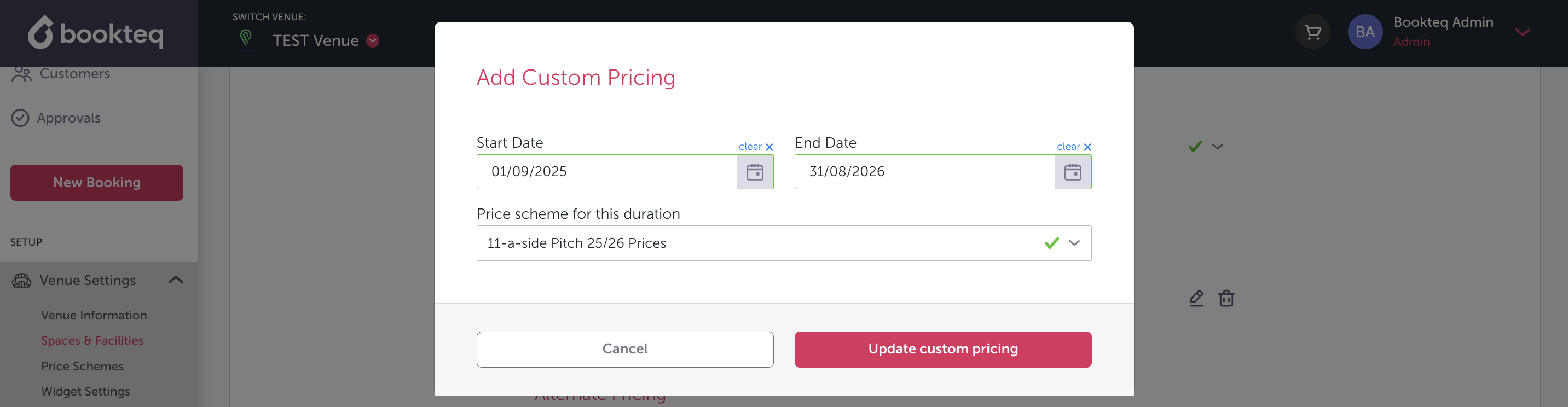
Future Pricing Option: Go to Venue Settings > Spaces & Facilities, select the space and facility, then scroll to Future Pricing. Click Add Future Pricing, choose the start and end dates, and select the price scheme for that period. Outside these dates, the default price applies unless another custom scheme exists.
Updating Prices: To change existing prices, simply edit the relevant price scheme and save changes—no need to create a new one from scratch. For further details on creating price schemes or adjusting opening hours, refer to the related help articles.
Managing Closure Dates
Certain days or periods may require your venue or specific facilities to be closed, such as holidays, maintenance, or between seasons. Using Closure Dates, you can block these periods on your calendar to prevent bookings.
Adding Closure Dates: Go to Venue Settings > Closure Dates and click Create First Period. Name the closure, select start and end dates, and choose whether it applies to all facilities or specific ones. Click Create to confirm.
Editing or Cancelling Closure Dates: Click the pencil icon to adjust dates or the trash icon to remove a closure.
Facility-Specific Closures: For temporary closures of individual facilities, the Blocked Facility feature may be more suitable. Create a booking, select Blocked Facility, set the duration (up to 7 days), and save.
This allows you to manage both whole-venue closures and selected facility availability efficiently.
Setting Up and Managing Online Repeat Bookings
To enable online repeat bookings, review and update the following sections in Venue Settings: Repeat Booking & Widget Settings, Payment Plans, Approvals, and Cancellation & Amendment Terms.
Repeat Booking & Widget Settings:
- Facilities Table: Choose which facilities can accept online repeat bookings.
- Discounts: Decide whether to offer a sports VAT exemption or no discount for repeat bookings of 10 or more.
- Repeat Booking Period: Set the duration for accepting repeat bookings, either by number of weeks or a specific end date (e.g., end of quarter or academic year).
Payment Plans:
You can offer customers weekly, monthly, or quarterly payment plans and take advantage of our new payment plan technology. The new payment plan system consolidates all bookings for a hirer under a single plan, payment method, and payment date, even if they have multiple booking orders. This also covers past unpaid or partially paid bookings, ensuring smoother debt management and payment updates. Changes such as cancellations or booking amendments automatically update the payment amount, ensuring accurate billing.
Approval Expiry Period:
Repeat booking approvals default to a 48-hour expiry but can be customised based on your venue’s needs.
Cancellation & Amendment Policy:
While you can cancel or amend bookings for your customers, we recommend encouraging customers to manage their own cancellations and changes wherever possible in their online customer portal account. The terms for cancelling and amending bookings can be set by you for each facility under Spaces & Facility.
Allowing customers to self-serve their bookings reduces manual admin work for your team, minimises back-and-forth communication, and ensures changes are made accurately and in real time. This approach is especially useful for high-volume or repeat bookings, helping your operations run more efficiently.
We hope this information is helpful and sets you up for a successful year ahead!