How to Create Additional Questions in Bookteq
What are Additional Questions?
Additional Questions allow you to collect important information from your hirers during the booking process.
They can be particularly useful when you need more context alongside documents submitted through Document Upload. For example, you might ask a hirer to provide the name of their organisation, the number of participants, or whether they have appropriate insurance in place, while using Document Upload to collect the supporting insurance certificate.
Together, these features make it easier to collect and manage the information you need from hirers in one place.
When should I use Additional Questions or Document Upload?
The two features work well together, but they are designed for different types of information:
- Additional Questions – use these to collect information or answers from your hirers.
- Document Upload – use this when you need a hirer to provide a file or document, such as an insurance certificate, safeguarding document, risk assessment or qualification.
For example, if you require proof of public liability insurance, you could use an Additional Question to ask “Do you have valid public liability insurance?” and use Document Upload to request the insurance certificate.
This gives you both the answer and the supporting documentation you need.
How to set up an Additional Question
To create a new Additional Question:
- Go to Venue Settings in Bookteq.
- Select Additional Questions from the menu.
- Click Create an additional question to begin.
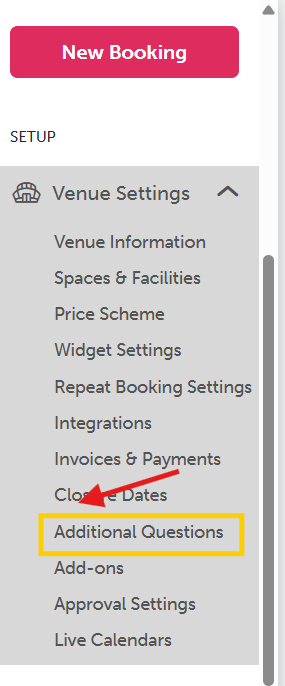

You will then be taken through a simple setup process.
Adding your question
First, define the question you want your hirer to answer:
- Internal name – for your reference only and not visible to hirers.
- Full question – the question your hirers will see, so make sure it is clear and easy to understand.
Next, choose the type of response you want to collect, such as:
- Text answer
- Number input
- Yes / No response
You can also choose whether the question is mandatory or optional.
If the information you need requires supporting paperwork, you can use Document Upload alongside your Additional Question to request the relevant file from the hirer.
Assigning the question to facilities
Once your question is created, you’ll need to assign it to the relevant facilities.
You can:
- Apply it to all facilities, or
- Select specific spaces where it should appear
For example, a question about coaching may only be relevant for sports bookings and not general space hire.
Make sure you include all applicable facilities so the question appears where needed.
Saving your question
Once everything is set up, click Save Changes. Your new Additional Question will now be live immediately on your booking calendar widget (if enabled for those facilities).
How hirers answer Additional Questions
There are two ways hirers can respond:
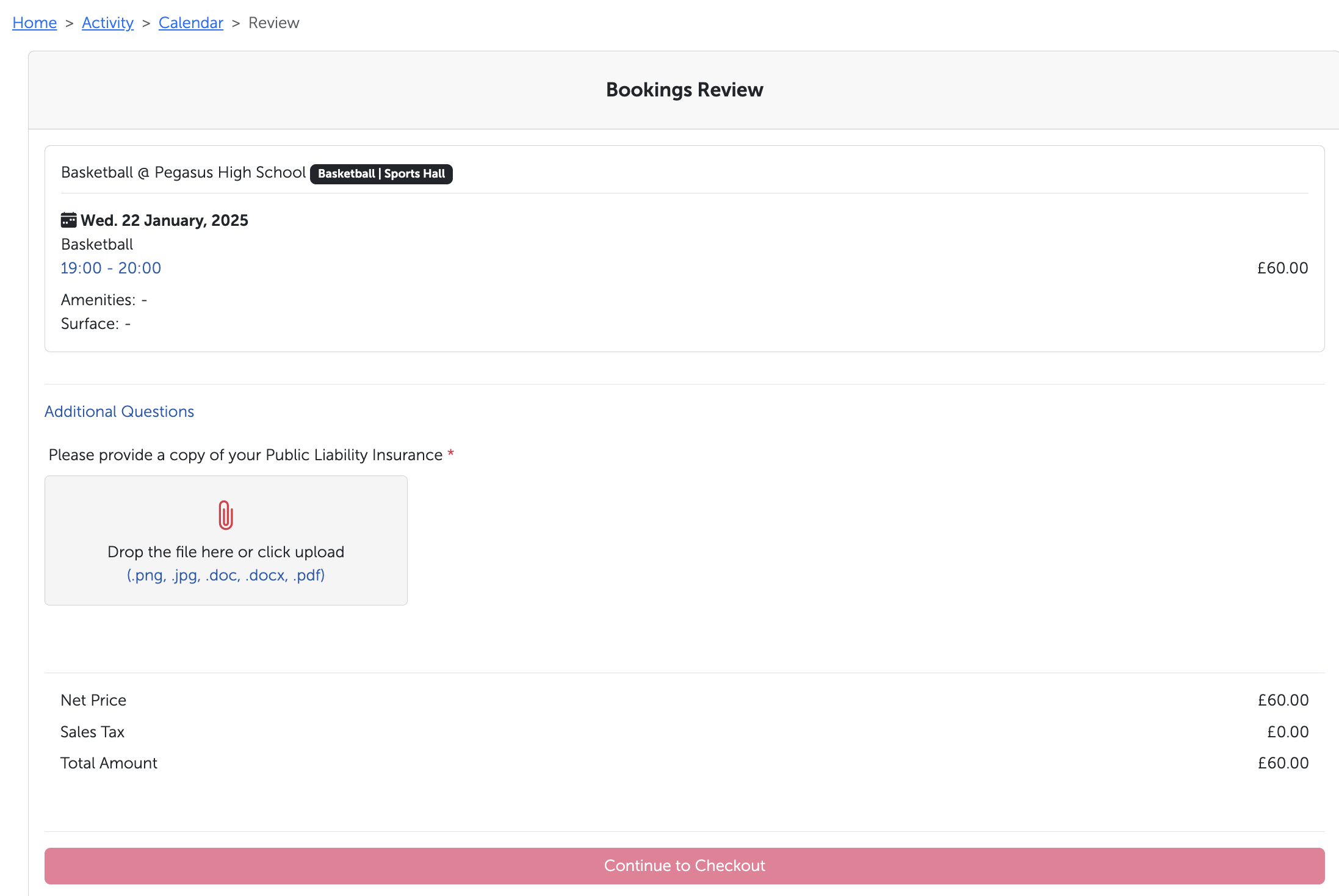
1. Through your booking calendar widget
When a hirer selects a facility, date and time on your website, they will be shown any relevant Additional Questions before reaching checkout.
They can provide the requested information and continue with their booking as normal.
Where Document Upload has also been configured, hirers can provide any required documents as part of the process.
2. Through Bookteq (manual bookings)
If a booking is created directly in Bookteq, staff will be prompted to complete any Additional Questions on behalf of the hirer during the booking process.
Identifying bookings with Additional Questions
You can see which bookings include Additional Questions within both the Calendar and Bookings sections.
These bookings are marked with a question mark icon, making them easy to identify.
For documents, you can view uploaded files directly from the customer's profile within the Customer Documents section. You can also view individual documents, remove files when they are no longer needed and keep track of expiry dates.
Bookteq will also notify you when a document has expired, helping you stay on top of important paperwork.
How to Add a Hyperlink to an Additional Question
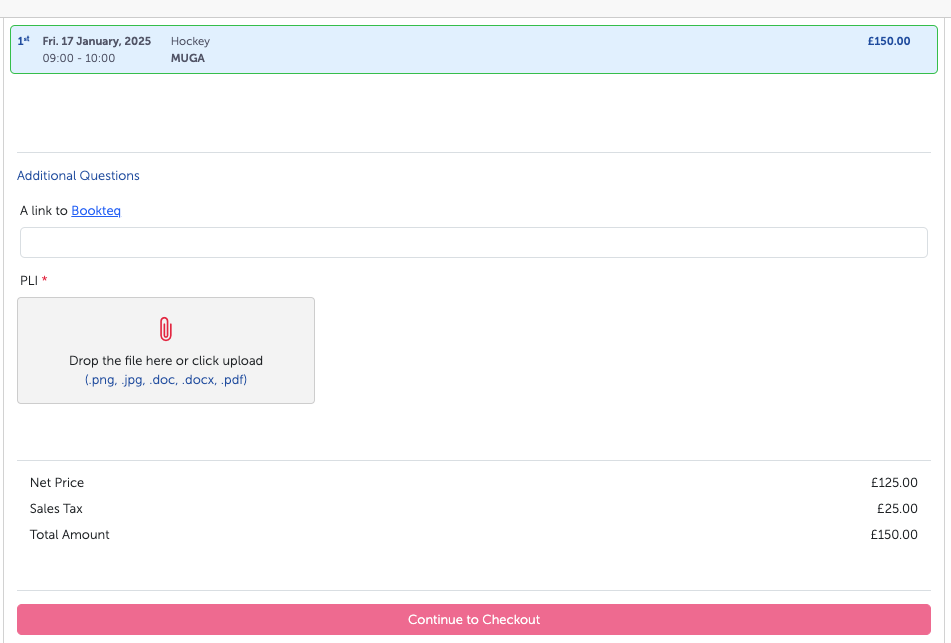
To add a hyperlink to an additional question, follow the steps shown in the screenshot below:
- Place the word or phrase you want to act as the hyperlink inside square brackets
[ ]. - Immediately follow it with the link you want to use inside parentheses
( ).
Example:[Click here](https://example.com)
Please ensure you save the file as a Google Document and that the link is unrestricted. This ensures the file is accessible to everyone.
-png.png)
Below is an example of how this will appear on your widget calendar, allowing your hirers to click on the relevant link.
Still have a question? For more information on using Additional Questions, please use our contact form to speak to a member of our team.